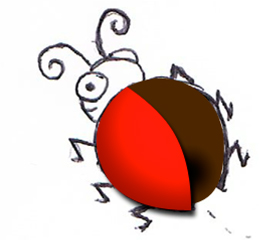
When drawing from scratch I usually draw my little cartoons with a combination of Adobe Illustrator and Photoshop but I decided to not stick with what was familiar to me and try to do the whole drawing in just photoshop. I used mostly used shape layers tracing a drawing that I sketched out on paper. I will show you below the steps from inspiration to completion on how to create this bug on the right. Hopefully you can take these steps and create your own cute little creature using these techniques.
Sketching the idea
Step 1
I still have trouble drawing on screen. There is nothing wrong with it if you can do it but I like to rough out an idea on paper and then scan or take a photo of the basic idea using that as a reference.
Use elipse tool to draw the body
Step 2
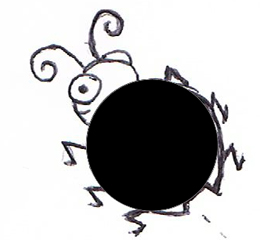
After you have imported the image select the Ellipse tool or press the U key and make a circle for the body. This will be the most bottom layer above the layer that is being traced.
Use anchors to pull the shape out
Step 3
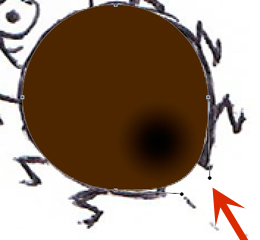
Not that this is not a scientific drawing but a lady bug body isn’t perfectly round so to give it some identity I used my Direct Selection Tool (A) to click the path of the circle and this revealed the anchor point with the various handle bars. I could then stretch them to reshape the bottom of the bug.
In addition I clicked on layers style icon at the bottom of the layers palette to bring up the gradient overlay. I thought a dark brown to black radial blend would give it an illusion of depth by giving it a slight shadow under the area where the wings will be.
Use the pen took to create a shape layer
Step 4
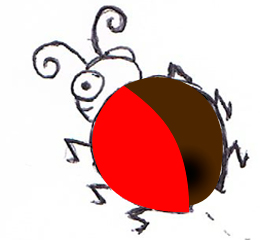
Next I selected the pen tool and made sure that a new shape layer was selected versus the paths. Then I traced the outline of the drawing for the first wing noting that one wing would overlap the other. After creating the initial curves I can then click on each anchor point and adjust the curve by rotating the control bars associated with the anchor points as mentioned in step three.
click on layer effect to add both inner and outer shadow
Step 5
I can now apply a layer FX by selecting a slight inner shadow where the wing curves and a drop shadow where the wing rests on the body.
Make one wing overlap the other
Step 6
Draw the second wing the same as above and then position it underneath the left wing so that one shadow appears to overlap the other.
Make each shape and group them together
Step 7
I traced the shape of one foot with the pen tool and then duplicated and stretched each foot by hitting the transform tool to match the drawing. This will make 6 duplicate layers so it’s best to group them all in one folder called foot by clicking the folder icon at the bottom of the layers pallet.
Use the pen tool to create the legs
Step 8
I created each angle of the leg by using the line tool in the shape block of the tool box. I could have joined each segment into one but I like to keep each section editable. Again I grouped these layers together as well.
Use elipse too to create the head and add a gradient overlay for the face shine
Step 9
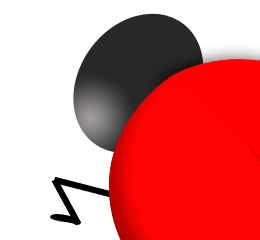
Using the ellipse too I matched the head shape and put it on the layer below the wing. I added a gray to black gradient overlay to the face so the smile would show and add a suggestion that light is coming up from the white ground below.
Draw a circle filled with gray for the eye shadow depth and stroke it
Step 10
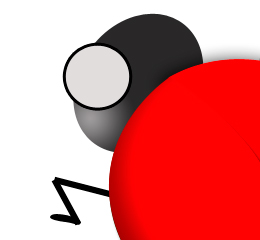
Make a circle for the eye and fill with gray and a stroke of black. This will be the outer part of the eye.
Add two more elipse shapes with no stroke, one white and one black
Step 11
Add a white circle slightly smaller and move it up so the outline is thicker on the bottom than on the top.
Add a small dot for the pupil.
Add the right eye and change the layer stack order. Draw a custom shape for the mouth.
Step 12
Duplicate layer with the outlined eye and shrink (transform) it a little to make it look like it’s further away and move the layer order to below the head.
Combonation of the shape layer and layer mask to create a group of dots.
Step 13
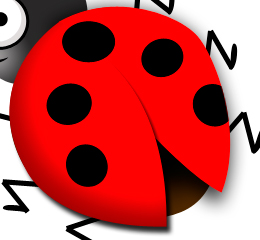
Add more circles for the dots on the bug with the elipse tool.
For the dot that goes over the right edge I made a selection of the right wing and inverted the selection. Then applied it as a layer mask to visually cut off the edge of the dot. It’s still there if you get rid of the layer mask but hidden from view.
A little highlight and curly antenna and we are almost done!
Step 14
Lastly a little shine suggestion with a shape of white at 50% transparency on top layer.
The curly antenna was drawn with the pen tool as a path and then stroked as a path.
Lastly I decided this would be a cute little accent for my RSS feeds as my follow me bug. I used the custom speech bubble shape and smooshed it around with the direct selection tool. The font I used is an old one called giddyup std. I liked how it matched her little antenna!
13 responses to “How to draw a cute ladybug in Photoshop”
Dario
How fun ! I marvel at your skill of drawing. And bringing life into characters you make. They become alive in front of the eyes. Shows great creativity.
Brenda
So – when are you going to teach me how to do that?
Rich
You make it look so easy! Of course you lost me at “sketch out your idea” LOL, I guess talent and creativity are required 😉 Great Job!!!

 When drawing from scratch I usually draw my little cartoons with a combination of Adobe Illustrator and Photoshop but I decided to not stick with what was familiar to me and try to do the whole drawing in just photoshop. I used mostly used shape layers tracing a drawing that I sketched out on paper. I will show you below the steps from inspiration to completion on how to create this bug on the right. Hopefully you can take these steps and create your own cute little creature using these techniques.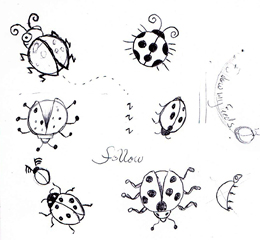

















Leave a Reply